
Getting Started
Explore DriBu first or start your own trip.
Demo without an account
Choose “Explore demo” on the app's first screen. A prepared trip opens in the real interface with a route, map markers, travellers and sample data.
Create your own trip
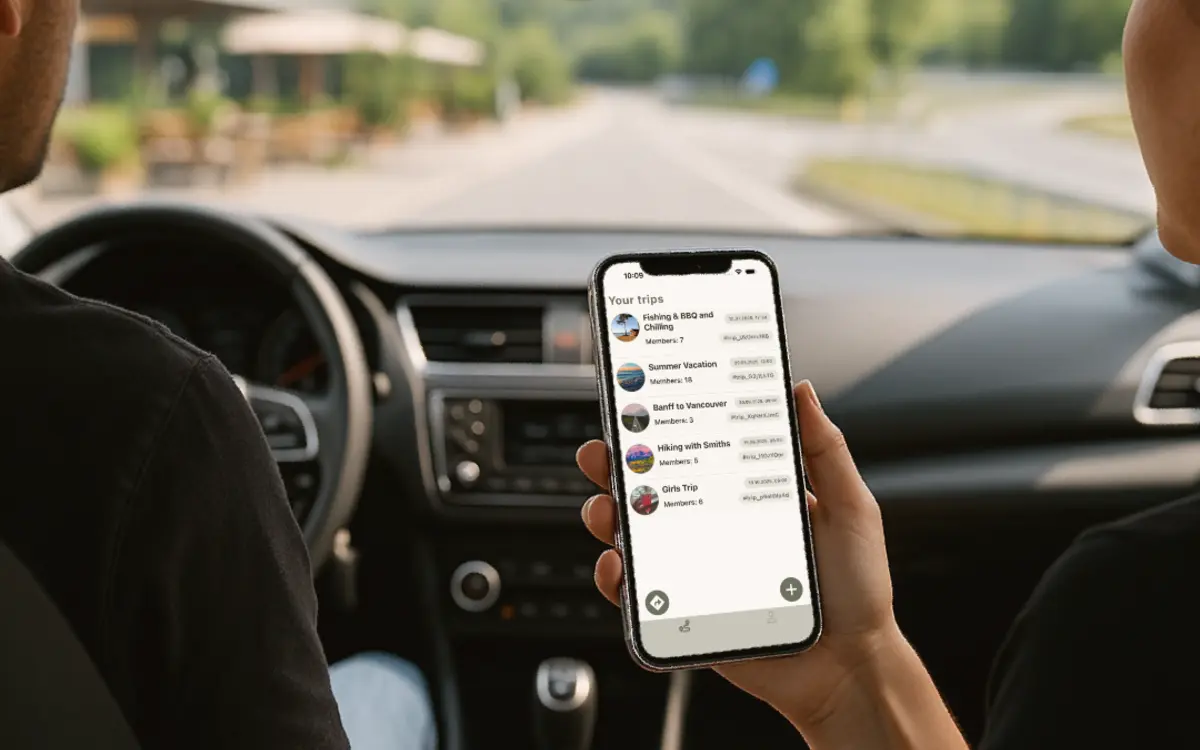
Sign up for free, open Trips, create a drive and share its invitation link. Other travellers can then join the trip.
Complete your profile later
An email address and password are enough to start. Add your name and other details before you become active and visible in a group.
Open an invitation
Open the invitation link on your phone. If DriBu is installed, it leads into the app; otherwise you can install it first.
On The Road
Navigation, live map and group features.
Which navigation is free?
Standard turn-by-turn navigation on your phone is free. Height, width and weight can also be applied to free standard routes where regional routing data is available. Premium adds live traffic, saved and advanced routes, Apple CarPlay and Android Auto.
Why can I not see someone on the live map?
Each person controls their own location sharing. Check that sharing is active in the trip, DriBu has location permission and the device is online. Old or offline positions are labelled accordingly.
How do I send pause or help?
Open the trip and then its central trip view or navigation. Send pause or help there so the group can understand your status without a phone call.
How do group expenses work?
Open Expenses in the trip, enter amount, currency and payer, then choose equal or individual shares. DriBu shows open amounts per currency. The actual payment happens outside the app.
How do I add earlier journeys and badges?
Open your travel history and add a journey or destination manually. Country and date range contribute to your travel stats and destinations, including trips from before DriBu.
Where are documents and vehicles?
Personal documents and vehicles are in your profile. Trip documents are inside that trip. Mark important files for offline use before you leave.
Your DriBu account
Delete your account and personal data
You can delete your DriBu account on the web even if you no longer have the app. Sign in, open “Delete account”, and type DELETE to confirm. Nothing is deleted before you confirm. Deletion cannot be undone. Shared trips may remain available to other members.
Deleting your account does not cancel an Apple or Google subscription. Cancel it first in the App Store or on Google Play. You can still delete your account immediately.
Delete your DriBu account on the web
Cannot sign in? Email dribu@it-bruderhofer.de to request account deletion. Never send your password or purchase token.
Personal Help
Still have a question?
Email dribu@it-bruderhofer.de. Helpful details are app version, iOS or Android, device model, affected area and steps leading to the issue. Do not send passwords, location histories or invitation tokens.